TABLE OF CONTENTS
- General
- Configuration
- Accounts
- Contacts
- Documents (New module)
- Out of office
- Projects
- Quotations
- Planning
- Timeregistration
- Warehouse management
General
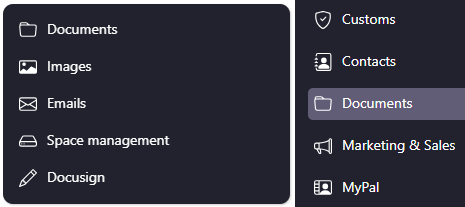
New module for document archive :
Configuration
Company
Define the storage limit (disk space) for archiving sales invoices, emails, documents, etc. (Operational Info).
- The standard free storage limit is 5 GB.
- If additional capacity is required, the customer must purchase extra storage.
- Only the System Manager is authorized to adjust the storage limit after additional capacity has been purchased.
Jobs
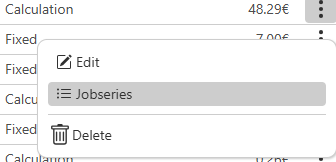
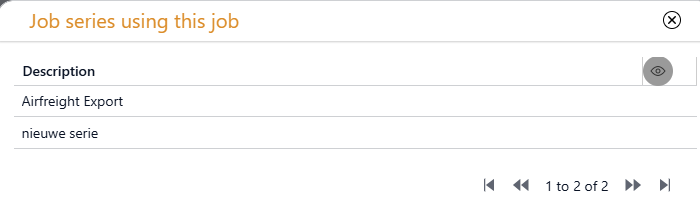
An additional menu option has been added to the job to check whether it is used in which job series. This makes it easier, for example in the case of a rate change, to quickly identify which job series also need to be updated if the rate must be adjusted there as well.
 |  |
Accounts
Status “Inactive”
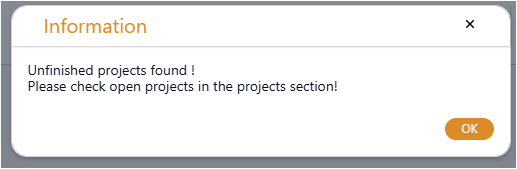
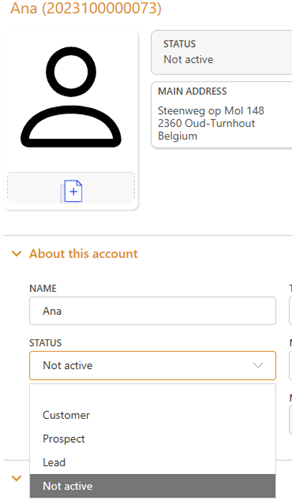 | When an account is set to inactive, the system checks for any open projects. If such projects exist, the user is notified; however, the account is still set to inactive. |
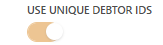
Unique “Debtor ID” – section Invoicing
In company settings, you can define whether double “Debtor ID’s” are allowed.
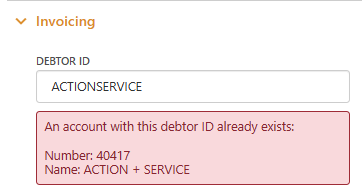
If the “Debtor ID” must be unique, a validation check is performed when the “Save” button is clicked. If the entered “Debtor ID” already exists, a warning message is displayed, followed by a confirmation message requesting permission to proceed.
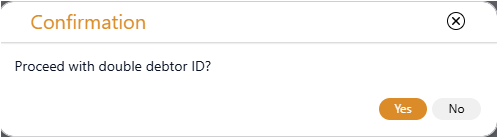 | When the user selects “No”, the account is not saved. |
Customs
An application manager can now create customs document types for use in the Customs module.
Location: Configuration -> Customs → Customs Document Types.
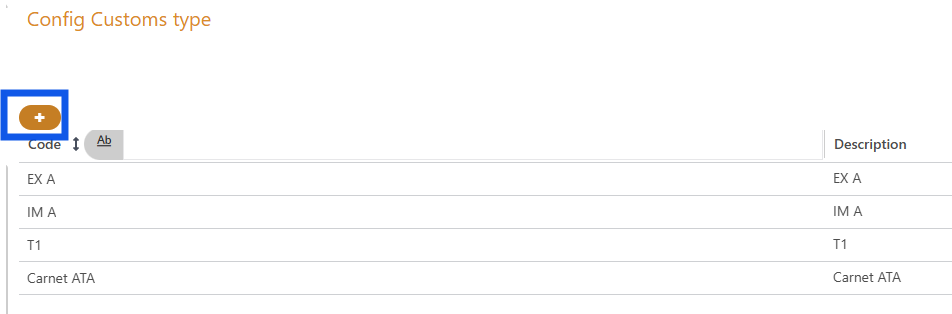
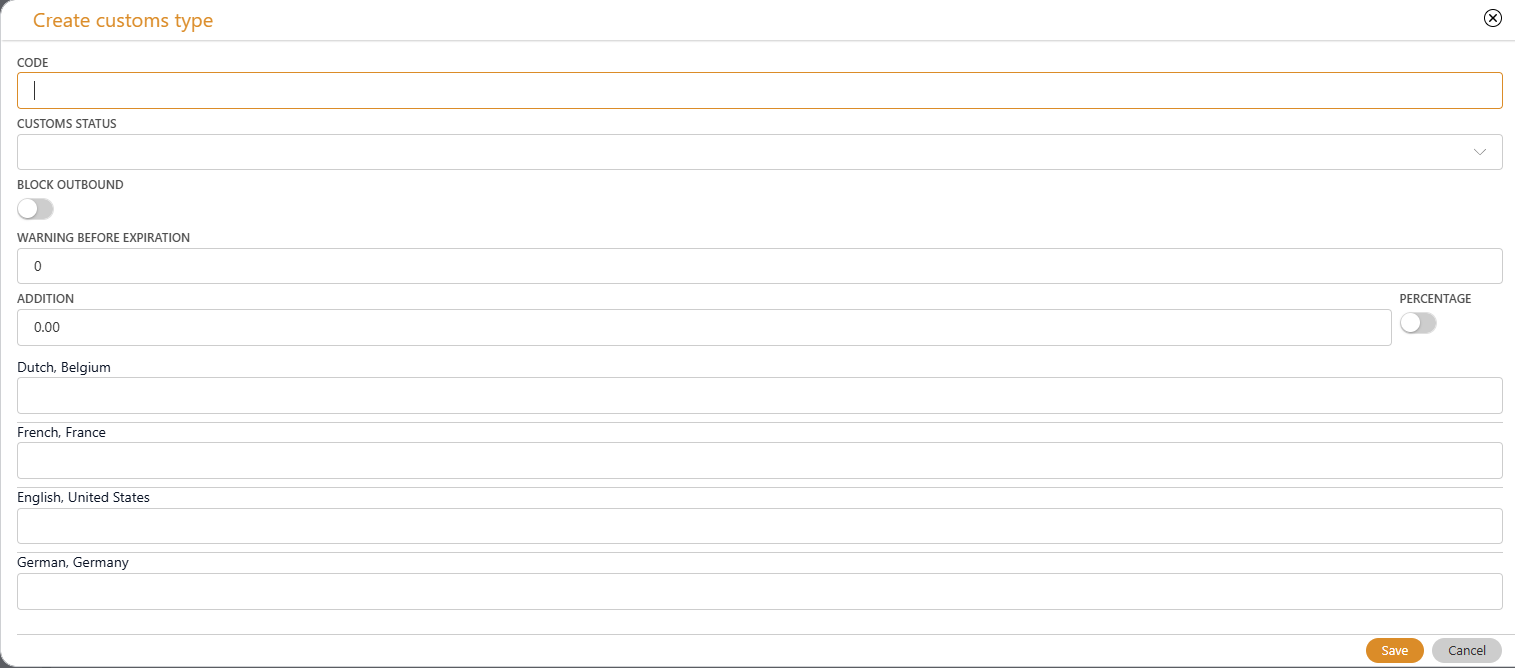
Specifications include for each document type :
- Code customs type.
- Customs document status.
- Blocking outbound processing in Warehouse Management.
- Setting the number of days for alerts before document expiration.
- Defining a surcharge on the customs value (fixed amount or percentage).
- Description in several languages.
Customs indication in Projects
When an article has a customs indication, opening the project will display this indication.
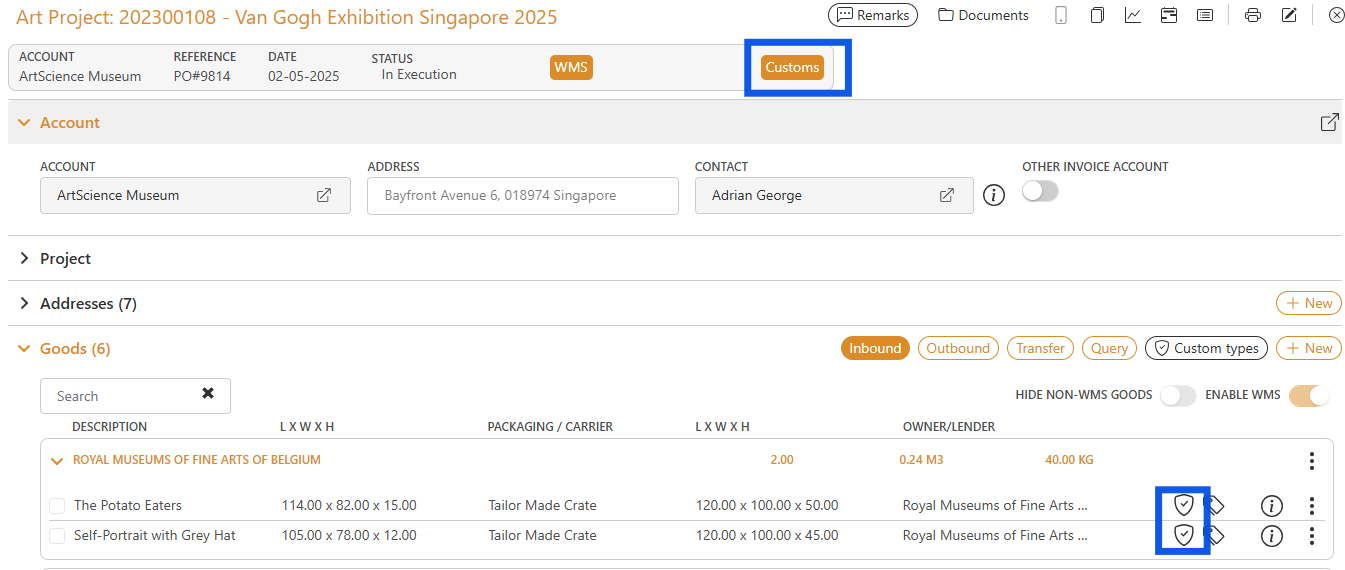
This also applies in a WMS project, where the indication is visible at the article level.
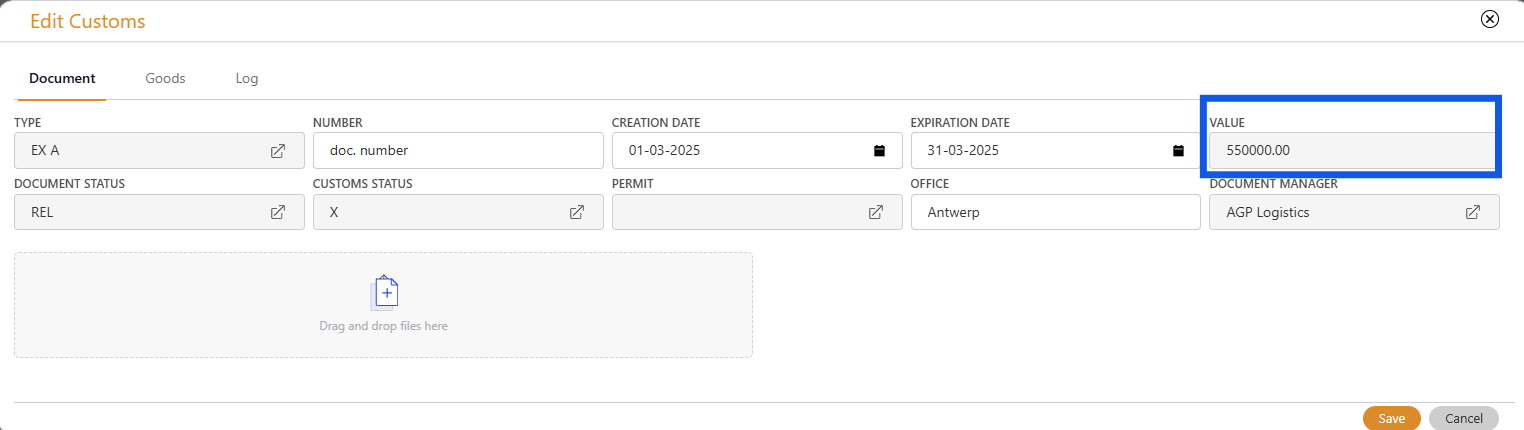
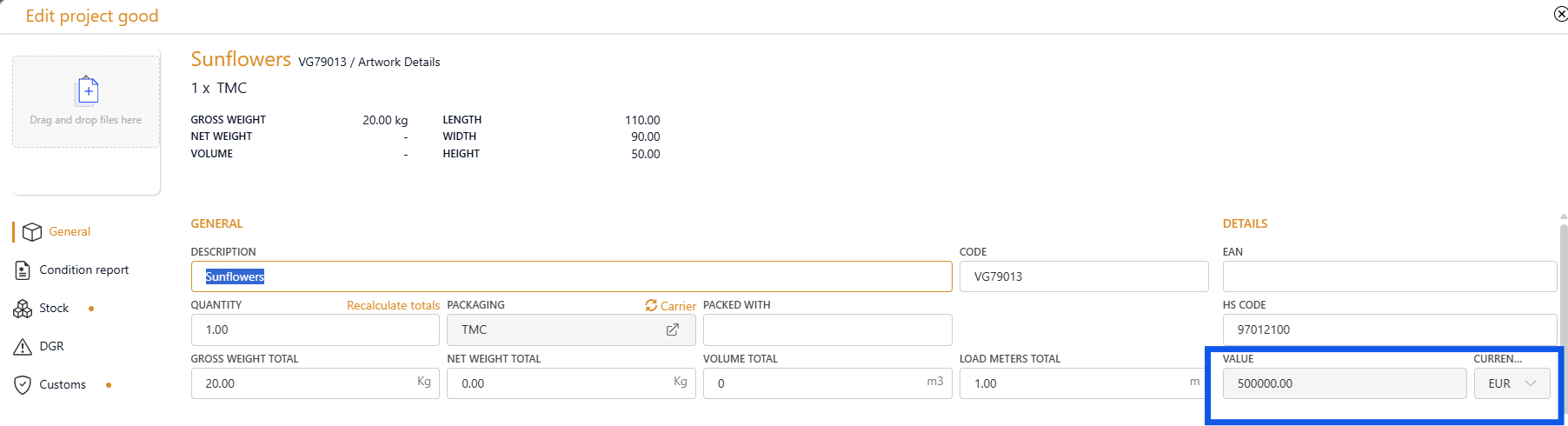
Customs Document -> Value
Total document value is automatically calculated as the sum of linked article values.
Optional surcharges (fixed amount or percentage) can be configured per document type (see Customs Document Types).
Article Value Locking
When an article is linked to a customs document, its value becomes locked and cannot be changed, as it is used in the document.
Customs Documents -> Remarks Users can add additional remarks to a customs document using the “Log remark” function. | 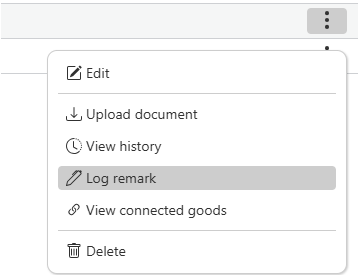 |
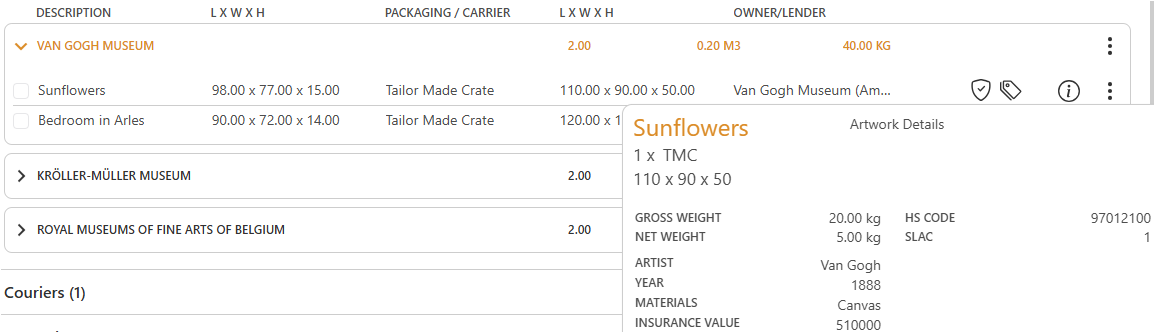
Customs Information in Article Info
Customs details now appear in the article information screen within projects.
Restrictions on Multiple Customs Documents
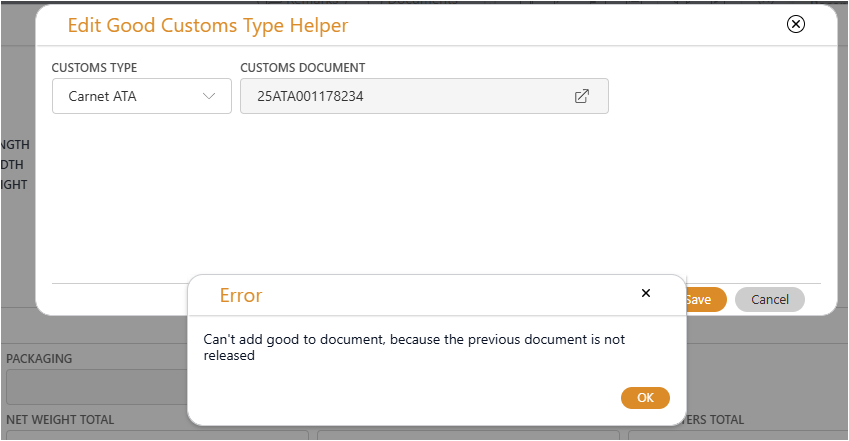
Adding an additional customs document to an article that already has one is prohibited. Attempting to do so will trigger an error message (see screenshot).
The linked customs document must have the status Released; otherwise, adding a new document is not allowed.
This validation has been implemented:
- When selecting an article for a document.
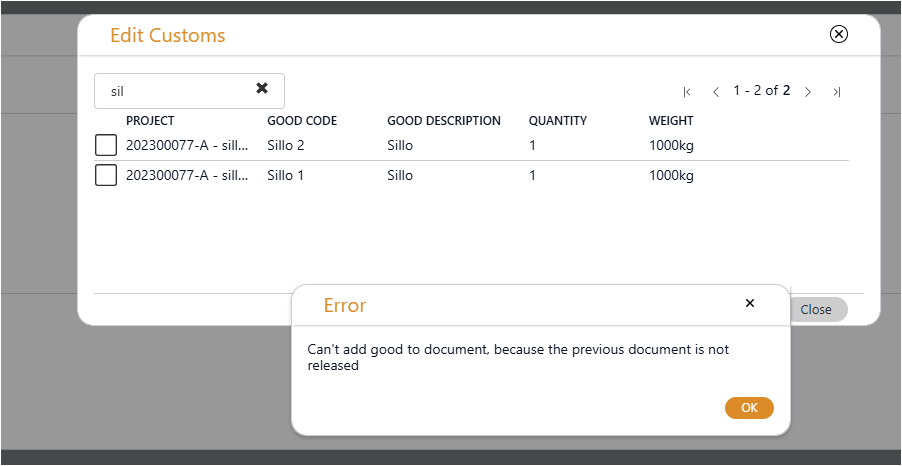
- When selecting a document for an article.
Adding an Article with Customs into Storage
When making an inbound entry definitive, the system performs the following checks:
- Customs toggle is on, but no customs document exists → cannot proceed.
- Validation of the customs document is required.
- Customs document requires a permit.
- Location has the required customs permit.
Outbound for an Article Under Customs
When making an outbound entry definitive, the following checks are performed:
- Verify the customs document status.
If set to “Outbound Blocking”, outbound is not possible. - Verify the document status – must be Released to proceed.
Transfer for an Article Under Customs
When transferring an article under customs, the following checks are performed:
- Customs document exists.
- Permit associated with the customs document exists.
- Permit document matches the permit of the target location.
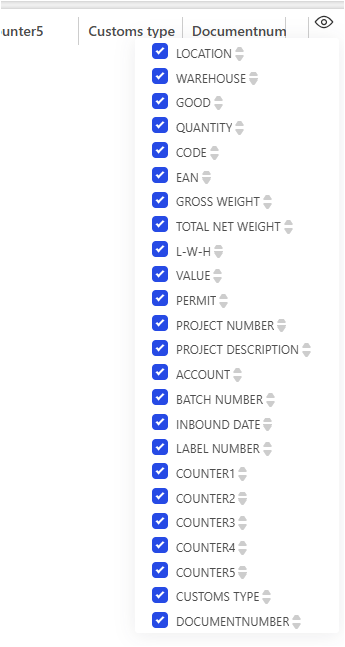
Customs Entrepot
|  |
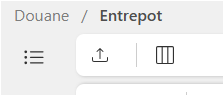
Customs Document Expiration tracking
The system provides indications based on approaching expiration dates:
- None → no action required.
- Blue Circle → warning, one day remaining.
- Orange Circle → danger, final day.
- Red Triangle → overdue.
A new cockpit body widget has been added that displays all documents that are approaching their expiration date.
Contacts
The “Title” table now displays a list of previously used titles.
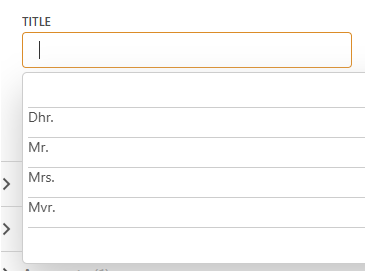
All existing titles are migrated into the new list during conversion.
Adding a new title automatically updates the “Title” list for future use.
Contacts list view now includes an additional column for language.

Contact exports now include an additional column for language.
Documents (New module)
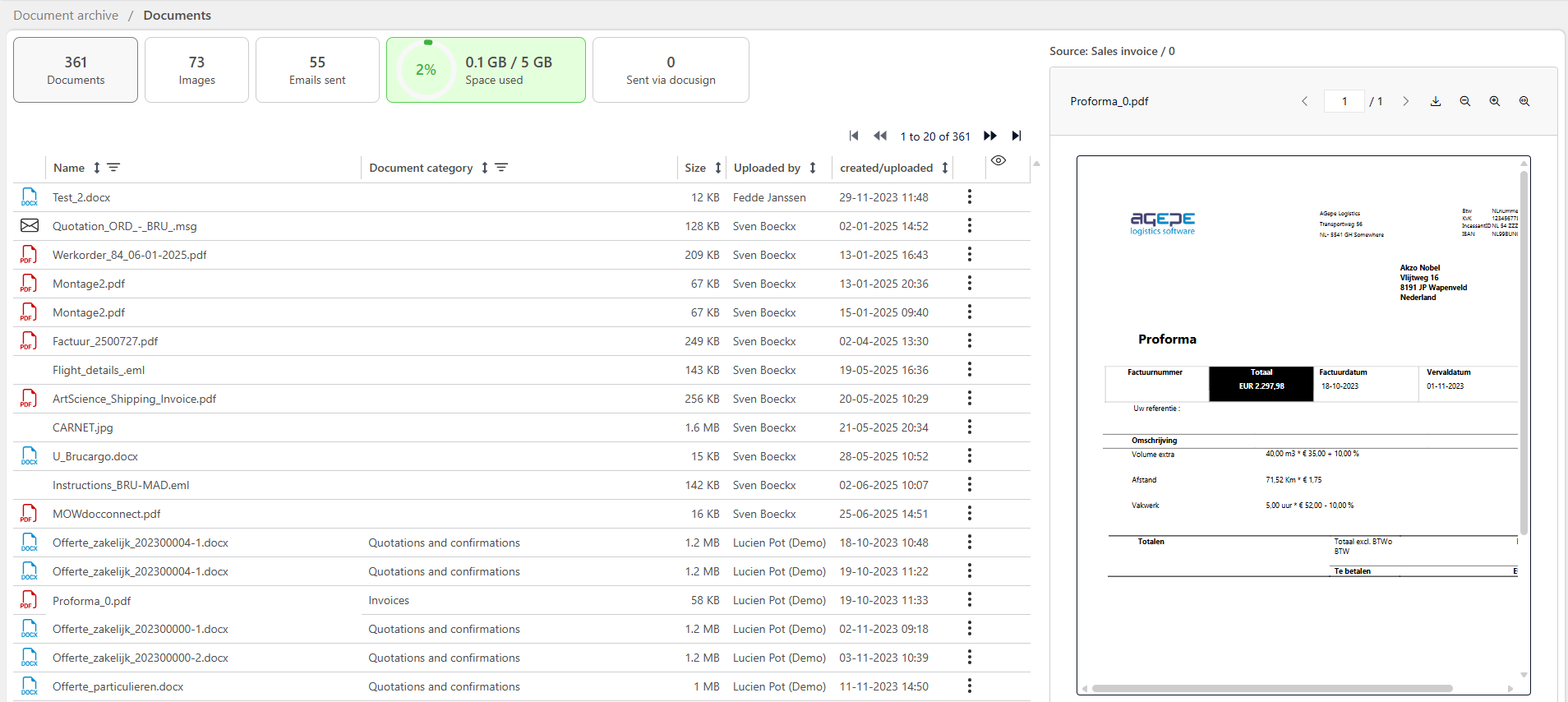
The header provides five selectable KPIs. The overview displays all documents for the selected KPI, with the following functionality:
- Search by document name.
- Filter by category.
- Sort by any column.
- Selecting a document shows a preview on the right-hand side of the screen.
Above the preview, the document’s source is displayed. You can download the document and zoom in or out.
KPI “Space used”
The KPI “Space used” is intended for managing diskspace. The color indicator provides an immediate visual cue as to whether action is required. The color changes based on disk space usage:
- Green < 70 % of disk space used
- Orange between 70 & 90 % of disk space used
- Red > 90 % of disk space used
The calculated percentage is based on the configured storage limit (see configuration).
Clicking the KPI “Space used” (available to the application manager only)
The progress bar displays the current disk space usage.
Documents are grouped by category or year, a list view show documents based on the selected category or year.
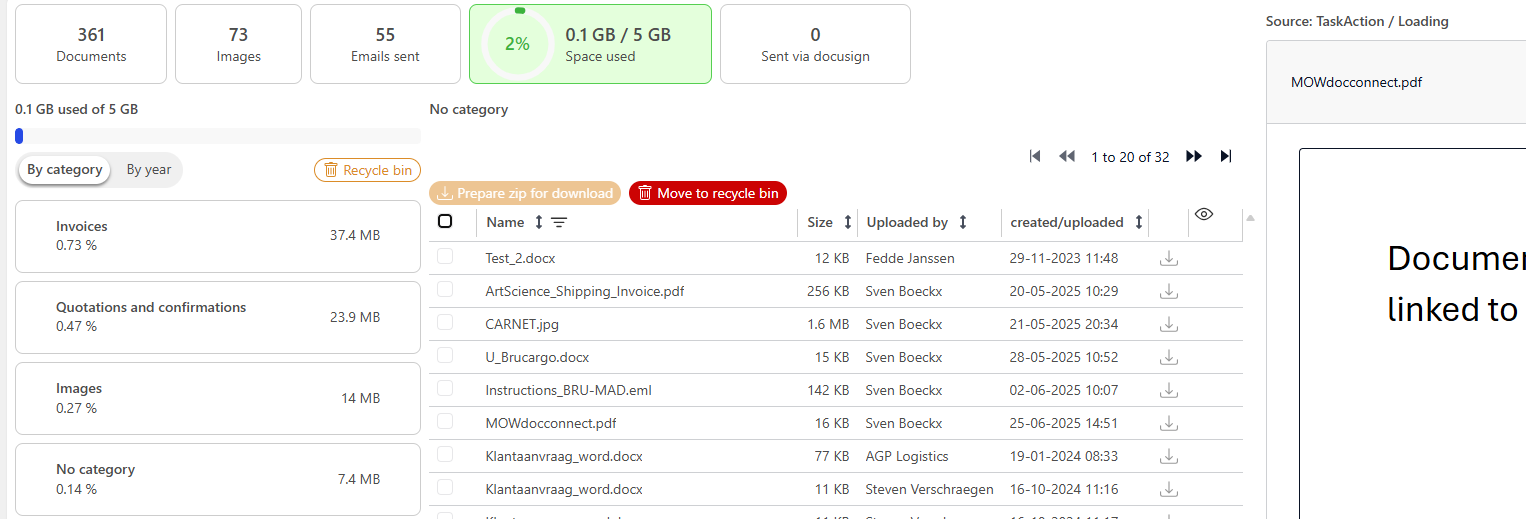
Disk space can be freed using the following 2 methods (only for the application manager) :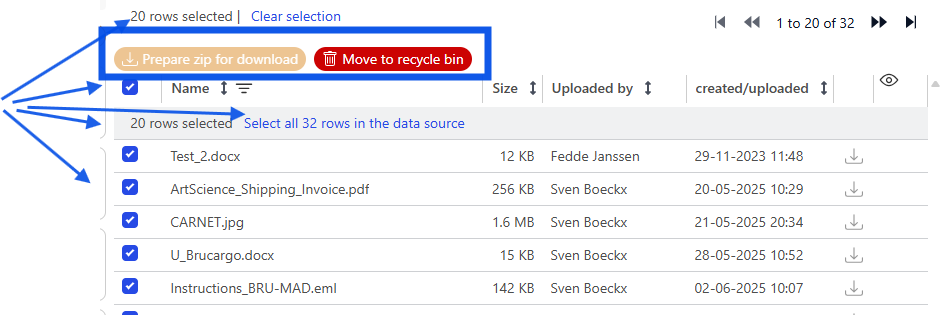
- Prepare zip for download
Selected documents are archived into a ZIP file.
A notification is displayed when the ZIP file is ready (download to local PC).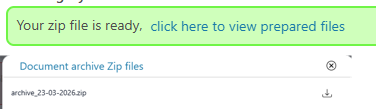
- After download, the system automatically removes the ZIP file.
(Note a message may indicate the ZIP file cannot be removed, however, the file will no longer be available for review)
- Move to recycle bin
Selection options:
- Individual checkbox
- Top-of-list checkbox: selects only documents visible on the current page
(20 documents)
- “Select All” option
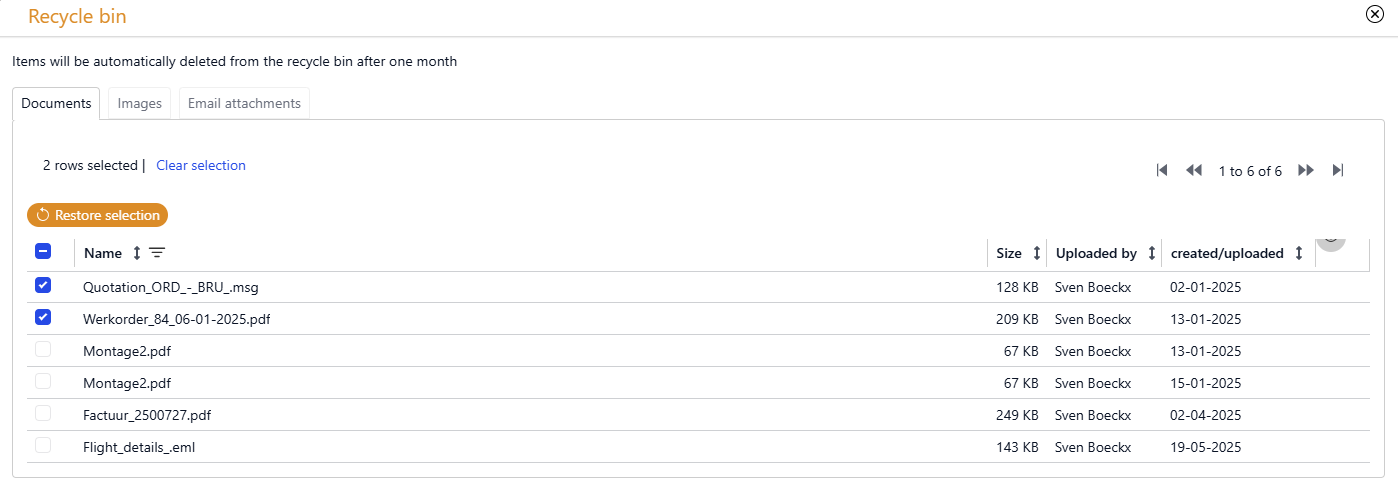
Files are moved to the Recycle Bin. The system automatically deletes files after 30 days.
Restore files from the Recycle Bin |  |
Mistakes happen, files can be restored from the Recycle Bin within 30 days.
Out of office
The system validates for duplicate registrations during request creation.

Projects
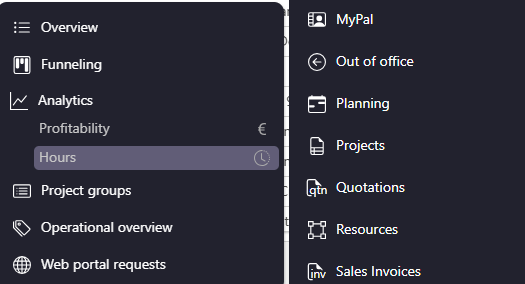
Extra sub function “Analytics – Hours” in menu.
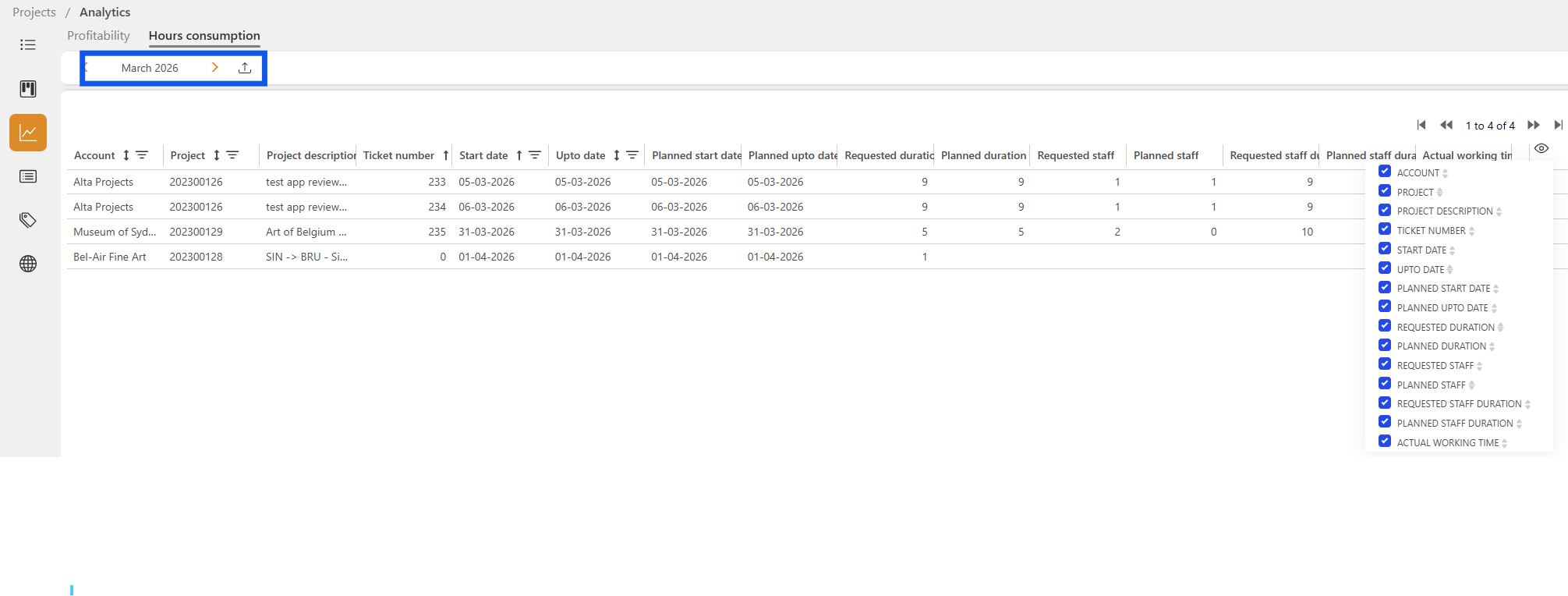
Additional analytics overview of all tickets for the selected month, comparing requested hours versus planned hours.
Data can be exported based on the specified selection criteria.
Project Closure Rules
A project cannot be closed if any of following conditions exist :
- There are unfinished actions (e.g. MYPAL actions).
- There are tickets not approved yet in timeregistration.
- There are quotations with status “PreCalc”, these must first be set to “Ordered” or “Lost”.
- There are invoices that have not yet been processed.
- There is remaining stock associated with the project.
- There are articles with customs documents that are not “Cleared”.
Lost Projects
A project marked as Lost cannot have new tickets created, in this case, the “Create ticket” button is removed.
Tickets
- New status for cancelling a ticket, open the ticket and select the button “Cancelled”.


- When a ticket is created with the status “To Confirm,” the project status is no longer updated. Previously, the project status would automatically change to “Kick-Off”.
- When creating a ticket for a project that is still status “Calculation”, the ticket cannot be saved as “Ready to be Planned.” Only the “To Confirm” status (i.e., a reservation) is allowed.
- When a ticket is set to status “Ready to be planned” the project status automatically changes to “Kick-Off”.
CMR & Workorder template
Additional template fields have been provided to print data from the actual customs document on a CMR and work order:
Level GoodGroups / Goods / CustomsDocuments :
DocumentNumber, Type, DocumentStatus, and ExpirationDate
Quotations
When booking a quotation, the system will check for tickets already with the status “To confirm”.
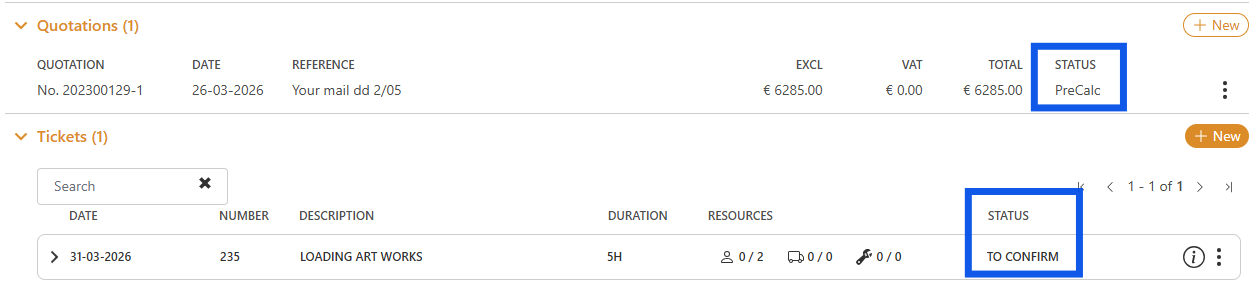
If this is the case, the following message will be displayed:
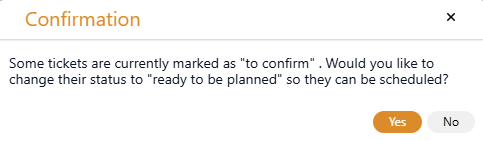
Outcome of the response:
No: Only the quotation will be set to “Booked”, and the account will be updated to “Customer”.
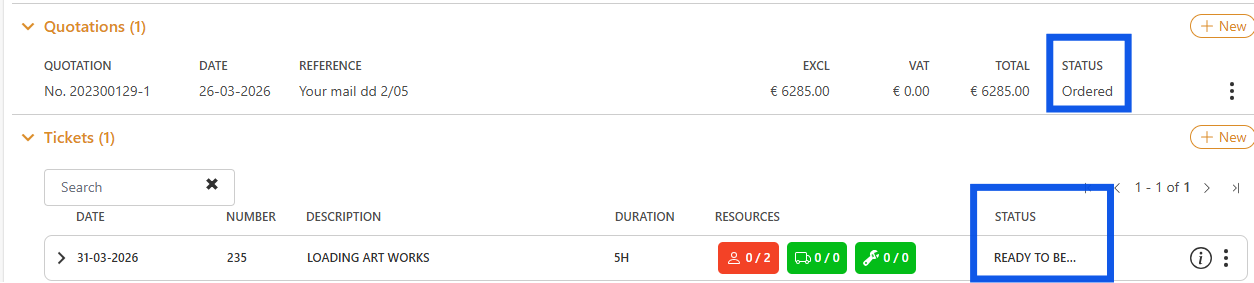
Yes : The following statuses are set automatically :
- Account status will be set to “Customer”.
- The project status will be set to “Booked”.
- The quotation will be set to “Ordered”.
- All tickets with the status “To be confirmed” will be updated to “Ready to be planned”.
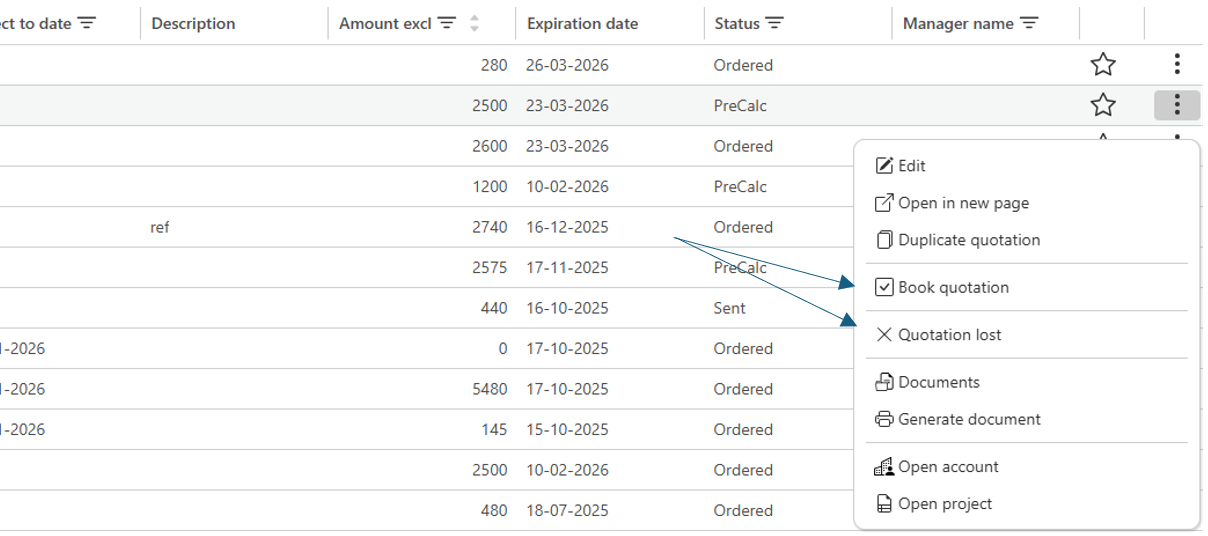
Quotation marked as “Lost” (new)
A new function is available in the quotation menu to set the quotation status to “Lost”.
The user is prompted to confirm whether the related project and ticket statuses should also be set to
“Lost”.
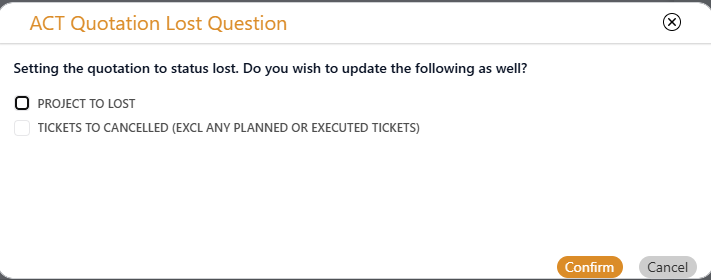
Note: Only tickets with a status prior to “Planned” (i.e., not yet planned) can be set to “Lost”.
Planning
Timeline planning
Cancelled tickets are visible in the timeline planning view without a time label.
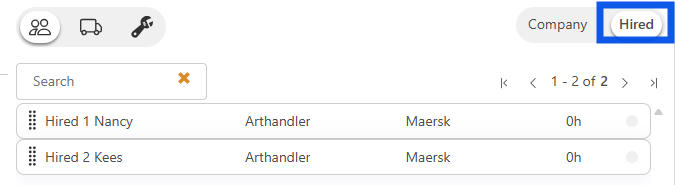
The staff timeline now displays also the names of hired staff on all levels :
- Planning overview for staff.
- selecting hired staff.
- resource capacity list of hired staff.
A search function is now available for selecting hired staff.
Ticket dashboard
The planning pool for cancelled tickets can be configured in the Ticket Dashboard.
Moving tickets from any pool to “Cancelled” is not allowed.
Tickets with status “Cancelled” are removed from the planning schedule.
Ticket planning
Cancelled tickets remain visible in ticket planning but cannot be scheduled.
Planning tickets
A printed ticket can be reset using a function available in the menu. | 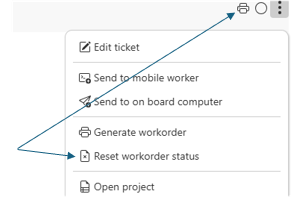 |
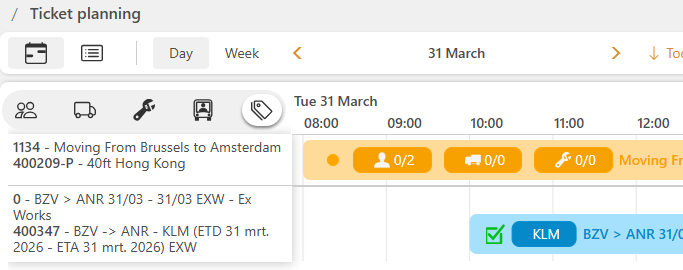
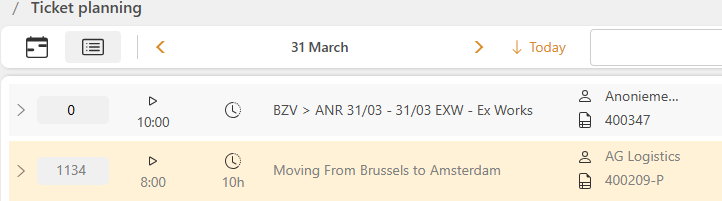
Ticket status “To Confirm” – now highlighted more clearly with a distinct color and icon.
Timeregistration
Group Time Approval (New Functionality)
Group approval is only possible per daily overview :
- Approve All Function
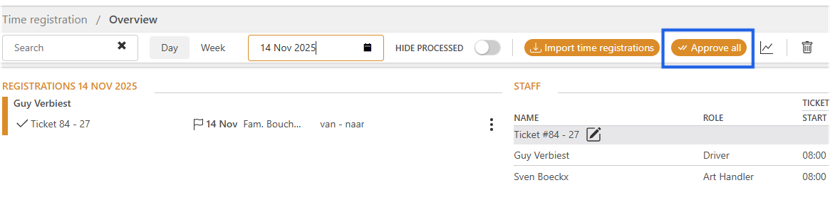
Using this function will approve ALL tickets and set ALL registrations to Processed.
The process runs in the background; therefore, the Time Registration module is temporarily closed.
Once the process is complete, a notification is sent to the user.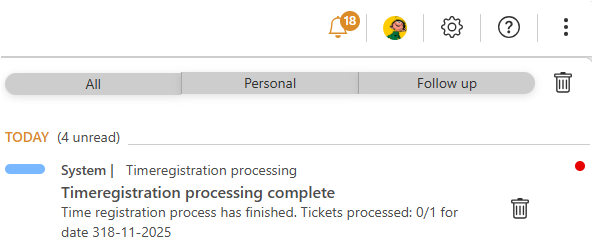
- Approve Ticket Function
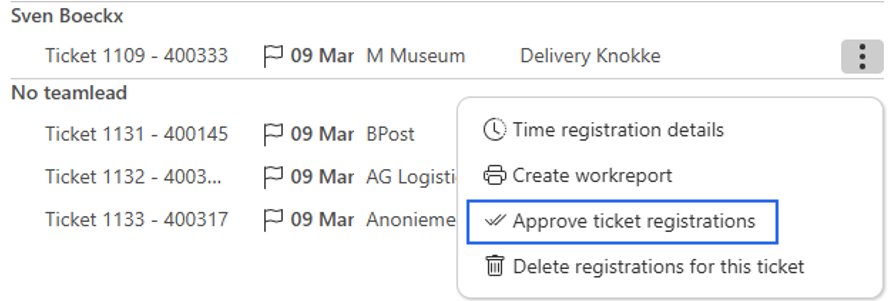
Using this function will approve a single ticket and set its registrations to Processed.
This function can be found in the ticket menu.
Warehouse management
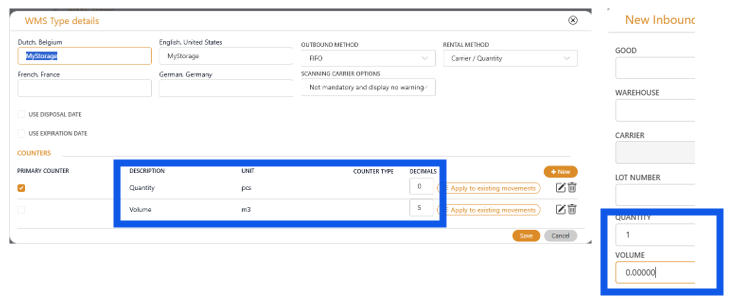
Configuration -> Warhouse management -> WMS types
Counters in Custom WMS types can now be configured based on the required number of decimal places.
The default setting is 2 decimal places.
New menu for movements
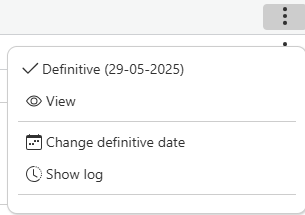
All available functions have now been grouped in the menu.
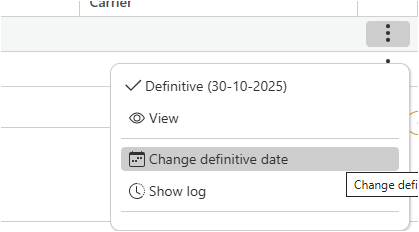
Outbound Definitive Date Change (New functionality)
The definitive date for outbounds can now be modified.
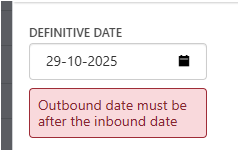
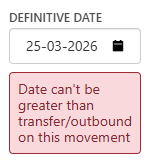
Attempting to set a definitive date earlier than the inbound date will trigger an error message (or later than another outbound/transfer).
Template Invoice attachment WMS
The start and end date of the billing period can now be printed correctly on the WMS attachment.
The fields WMSStartDate and WMSPeriodEndDate have been moved to the “Root” level for this purpose.
Extra template fields for the actual customs document
Additional template fields for printing the actual customs document are available for the following templates :
- Inbound batch.
- Outbound batch.
- Inbound label.
- History.
The following fields have been added under the CustomsDocuments level :
DocumentNumber, Type, DocumentStatus, and ExpirationDate.
Was this article helpful?
That’s Great!
Thank you for your feedback
Sorry! We couldn't be helpful
Thank you for your feedback
Feedback sent
We appreciate your effort and will try to fix the article